Do you love chatting with your friends on WhatsApp but wish you could use your computer keyboard? You are not alone. Typing long messages on a tiny phone screen can be tricky. Luckily, there is a very simple way to fix this problem. It is called Web WhatsApp.
Using web whatsapp lets you link your phone app to your internet browser. You do not need to download any heavy programs. Just open a webpage, scan a special code, and you are ready to chat. It brings all your favorite chats right to your desktop screen in seconds.
In this guide, I will show you exactly how to set it up. I use this tool every single day for work and talking to family. I will share my best tips to make it work perfectly for you. Let’s dive in and get you started right now.
What is Web WhatsApp?
Web whatsapp is an official online extension of your phone’s messaging app. It mirrors your mobile device perfectly. This means every text, photo, or video you send or receive shows up on both screens. It connects directly to your phone using an internet connection.
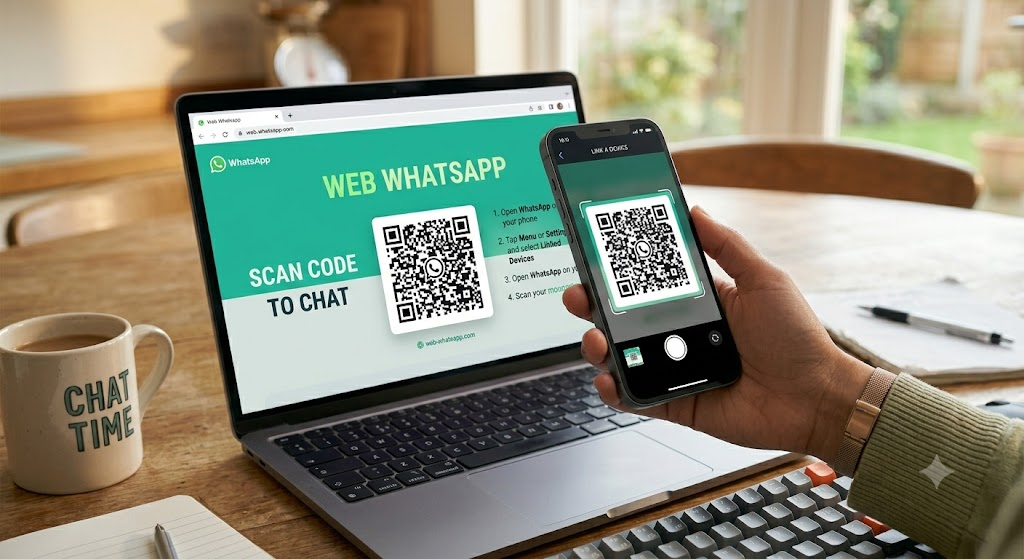
Many beginners worry that it is a separate account, but it is not. You use the exact same phone number and contact list. When you open the site, you see a QR code on your monitor. You scan this code with your phone camera to log in safely.
I find it super helpful when my phone is charging in the other room. I can just keep working on my computer without missing important messages. It saves a lot of time switching between devices all day long.
Why You Should Use It on Your PC
Typing on a real keyboard is much faster than tapping a glass screen. If you have big hands or need to send long messages, web whatsapp is a total lifesaver. You can type out whole paragraphs in just a few seconds.
Another great benefit is sharing files directly from your computer. If you have a document, a picture, or a homework file on your desktop, you can just drag and drop it into the chat. You do not need to email it to yourself first.
Finally, it helps you focus better. Instead of looking down at your phone every two minutes, your chats are just another tab on your big screen. It keeps your hands in one place and stops you from getting distracted by other phone apps.
System Requirements for Your Computer
Before you begin, you need a few basic things to make web whatsapp work smoothly. First, you need a computer or a laptop with a modern internet browser. Good choices include Google Chrome, Mozilla Firefox, Microsoft Edge, or Apple Safari.
Second, you need an active internet connection on both your computer and your smartphone. If your Wi-Fi is very slow or keeps dropping, the connection might fail. Both devices need to talk to each other to load your messages.
Third, your smartphone must have the mobile app installed and an active account. You cannot log in without your phone nearby. Keeping your phone updated to the latest version also helps prevent annoying connection bugs.
Step-by-Step Guide to Connecting Your Account
Setting up web whatsapp takes less than a minute if you follow these simple steps. First, open your computer browser and go to the official website. You will see a large black and white square box on the right side of the screen.
Next, pick up your smartphone and open your app. If you use an iPhone, tap settings and choose linked devices. If you use an Android phone, tap the three dots in the top corner and choose linked devices.
Now, tap the green button that says link a device. Your phone camera will open up. Point your phone camera at the computer screen so the square box fits inside the frame. The system will read the code automatically and log you in.
Tips for a Faster Login Process
Sometimes the code scan does not work on the first try. Do not panic if this happens to you. First, clean your phone camera lens gently with a soft cloth. Smudges can stop your phone from reading the code correctly.
Next, check your computer screen brightness. If your screen is too dim, your phone camera might struggle to read the pattern. Turn up the brightness on your monitor a little bit to make the code super clear.
Also, make sure your phone is close to the computer screen. Holding it too far away makes the code look too small for the camera lens. Just hold it about six to eight inches away for a perfect, instant scan.
How to Send and Receive Messages
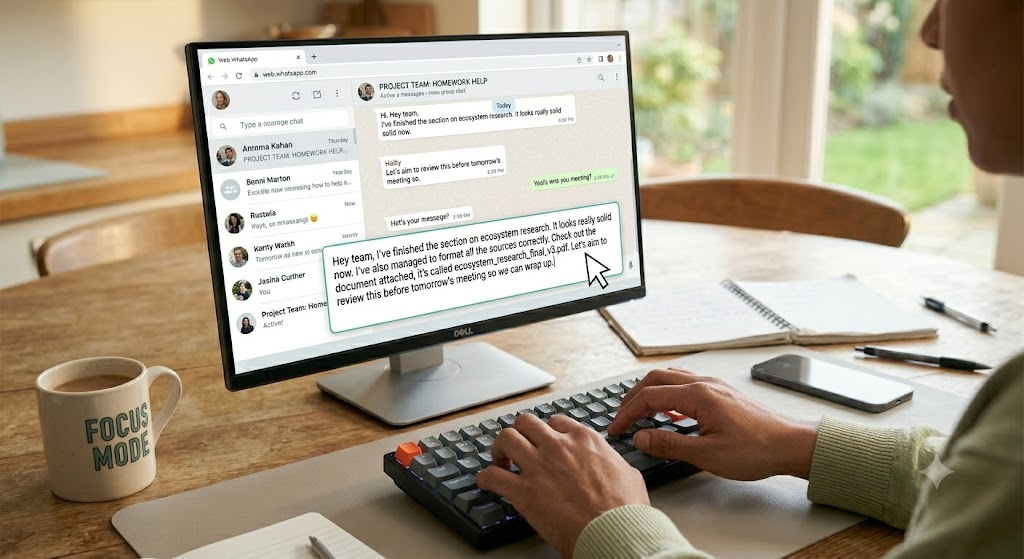
Now that you are logged into web whatsapp, sending a text is very easy. Look at the left side of your screen to see your chat list. Click on the name of the friend or family member you want to talk to.
A chat window will open on the right side of your monitor. Click the empty text box at the very bottom of the screen. Type your message using your keyboard and press the enter key on your keyboard to send it instantly.
To read incoming texts, just watch for a little red dot on the chat names. Click the name to read the new text. You will also hear a gentle chime sound when a new text arrives, provided your computer volume is turned up.
Sending Photos, Videos, and Documents
Sharing fun pictures or important school files on web whatsapp is very simple. Look at the top right corner of your chat box. You will see a small paperclip icon. Click this icon to open a menu of sharing options.
To send a picture, click the photos and videos button. A window will pop up showing your computer folders. Find the picture you want, click it, and press open. Add a quick caption if you want, and click the green send arrow.
You can also send documents like PDF files or school reports the exact same way. Just click the document icon instead. It is a great way to turn your computer into a powerful communication tool for your daily life.
Using Emojis and Stickers for Fun
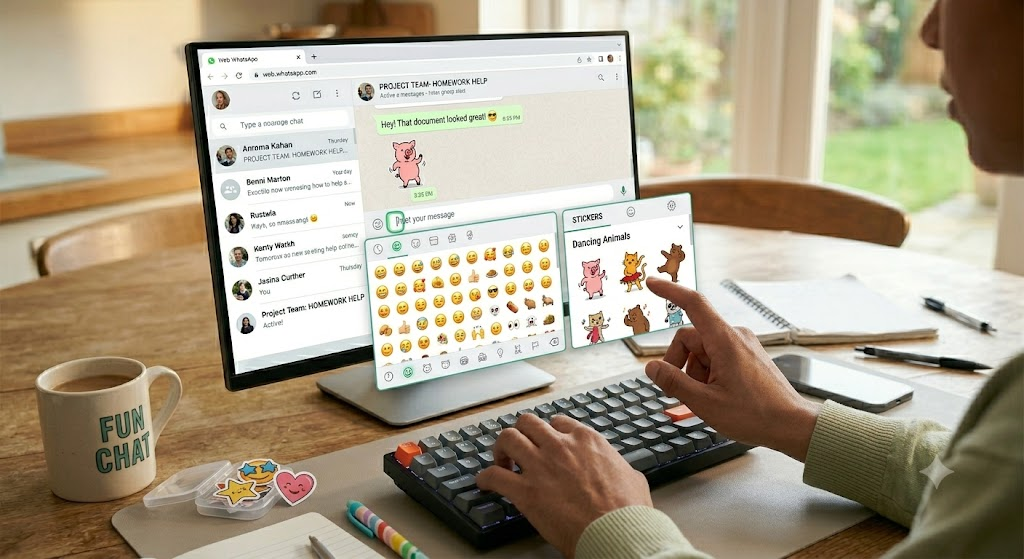
Chats are much more fun when you use emojis and stickers. web whatsapp gives you a giant library of fun pictures to share with your buddies. Look inside the text box at the bottom of your screen for a tiny smiley face icon.
Click that smiley face to open the emoji menu. You can scroll through hundreds of happy faces, food items, and animal pictures. Click any picture you like, and it will drop right into your text box ready to send.
Beside the emoji button, you will also see a sticker button. Stickers are larger, animated pictures that show big emotions. Click a sticker to send it instantly. My personal favorites are the dancing animals because they always make my friends smile.
How to Log Out and Keep Your Account Safe
Keeping your account safe is very important, especially if you share a computer with others. When you finish using web whatsapp, you should always log out. This stops other people from reading your private personal chats.
To log out, look at the top of your left chat list. Click the three small dots icon to open a menu. At the bottom of this menu, you will see the word log out. Click it, and confirm your choice.
If you forget to log out on a public computer, you can fix it using your phone. Open your phone app, go to linked devices, and tap the computer session. Then tap remote log off to instantly end the session from afar.
Quick Troubleshooting for Common Issues
Sometimes web whatsapp might not work exactly right. Do not worry, because most quick problems have very easy fixes. If your messages will not load, check your internet router. Turn it off and on again to fix bad signals.
If your messages say phone not connected, your mobile device likely lost internet. Check your phone Wi-Fi or mobile data. Open the app on your phone and make sure it can send a normal text message.
Finally, try clearing your internet browser cache if the page looks broken. Press the refresh button on your browser screen. Usually, a simple page refresh fixes ninety percent of small loading glitches instantly.
Frequently Asked Questions
Can I use web whatsapp without my phone nearby?
No, your phone must stay connected to the internet for the desktop version to work properly.
Is it safe to use web whatsapp on a public computer?
Yes, but you must remember to log out when you finish your conversation so nobody else reads your messages.
Can I make voice calls or video calls from the website?
Voice and video calls are only available on the downloadable desktop app, not directly inside the web browser.
How do I stop others from seeing my screen at work?
You can turn on privacy settings in your menu to blur names and messages until you hover your mouse over them.
Can I use two different accounts on the same computer browser?
You cannot use two accounts at the same time on one browser tab, but you can use different browsers for different accounts.
Do I have to pay money to use this computer feature?
No, using this service is completely free for all users, just like the mobile phone application.
Conclusion
Using web whatsapp is a game changer for anyone who types a lot during the day. It takes away the pain of tiny phone screens and helps you talk faster. With a big keyboard and a mouse, keeping up with friends is an absolute breeze.
Now it is your turn to try it out. Grab your phone, open your computer browser, and link your device today. Let me know in the comments below if you have any trouble connecting. Happy chatting everyone!