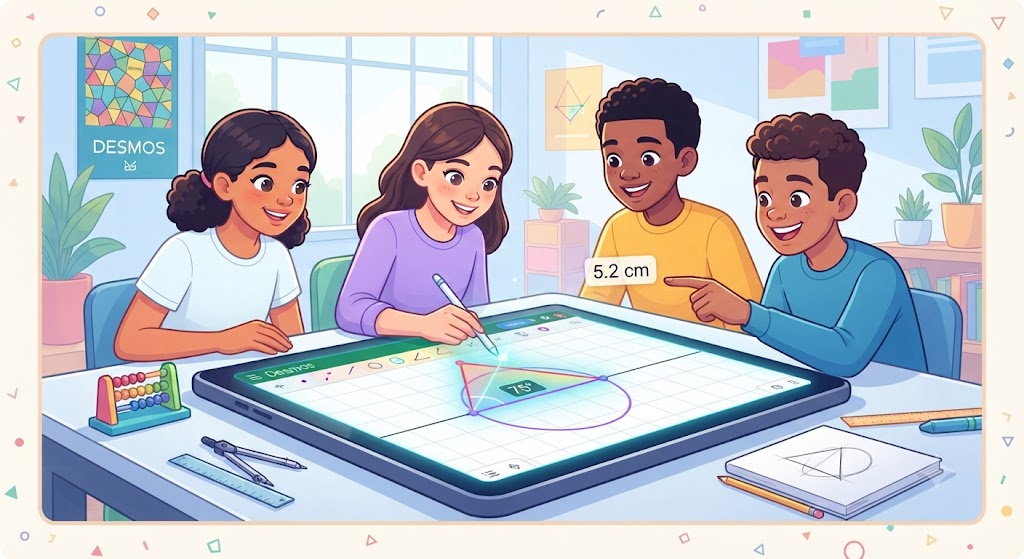
Math does not have to be boring or hard. Sometimes, all you need is a cool tool that lets you play with shapes on your screen. That is where Desmos Geometry comes in to save the day. It is a free online canvas where you can draw lines, circles, and angles with just a few clicks of your mouse. When I first tried it, I felt like a digital artist who could also measure angles perfectly. You do not need fancy paper or a heavy ruler. Everything lives right inside your web browser. It is fast, clean, and very fun to use every single day.
What Is This Cool Math Canvas?
Meet Your New Favorite Online Math Tool
Think of this tool as a digital whiteboard built just for shapes. You can click to drop a point or drag your mouse to stretch a line. It reacts instantly to what your hands do on the keyboard. When you move a corner of a triangle, the other sides change right along with it. This live feedback helps your brain see how math rules work in real life. You do not just read about geometry; you watch it move and breathe on your screen. It turns confusing textbook pages into a living puzzle.
How to Draw Your First Point and Line
Getting Started with Simple Dots and Straight Paths
Every big drawing starts with a tiny dot. In Desmos Geometry, you just click the point tool and tap the screen. Then, you pick the line tool to connect two dots together. Watching that straight path pop up feels very satisfying. You can grab either end of the line and swing it around like a clock hand. The program shows you the exact length right next to the line. It is like having magic glasses that measure things for you while you play around.
Making Circles and Curves That Spin
Creating Round Shapes with a Center Dot
Circles are some of the neatest shapes in the whole world. With this app, you click once for the middle and drag outward to grow your circle. It puffs up like a soap bubble right before your eyes. You can change how big it is by pulling the outer edge. If you put a point on that edge and spin it, the circle stays happy and round. Trying this out makes learning about radius and diameter feel like a fun video game challenge instead of homework.
Measuring Angles Without a Plastic Ruler
Finding the Size of Corners Easily
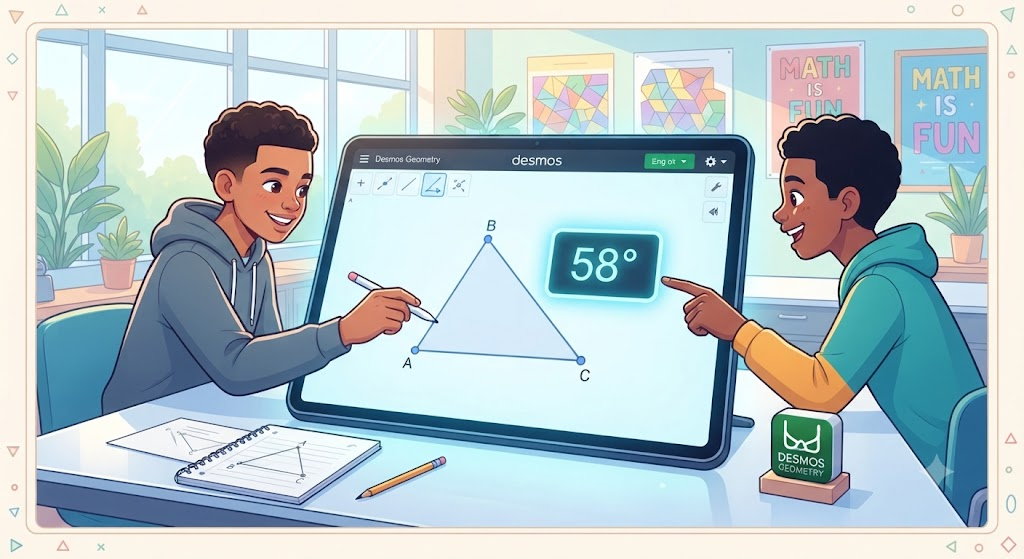
Measuring corners on paper can get messy fast. You have to line up a clear plastic tool and squint at tiny numbers. Desmos Geometry does all that hard squinting for you. You click three points that make a corner, and the angle number shows up like magic. When you squeeze the corner tighter or push it wider, the number updates instantly. You get to see how sharp or wide an angle is without guessing or making mistakes with a physical tool.
Building Triangles and Checking Their Sides
Connecting Three Dots to Make Strong Shapes
Triangles are the strongest shapes used in bridges and tall towers. You can build your own triangle by dropping three dots and linking them up. Once the shape closes, you can color it or measure its sides. Try pulling one corner way out to see how the other sides grow to match. You will notice special rules about how long the sides need to be. Playing with these triangles helps you understand why buildings do not fall down when the wind blows.
Transforming and Sliding Shapes Across the Screen
Moving and Flipping Your Drawings
Once you draw a cool shape, you do not have to leave it sitting still. You can slide it across the grid like a toy car on a smooth floor. The app also lets you flip the shape over like a pancake or spin it in a circle. Watching your drawing travel across the page shows you how movement works in math. It is like animation, but you are the director who decides where every single shape gets to travel next.
Exploring Symmetry and Mirror Images
Finding Matching Halves in Your Artwork
Symmetry is when one side of a shape matches the other side like a reflection in a pond. You can draw a line down the middle of your screen and watch the app copy your work on the other side. When you draw a wing on a butterfly, the other wing appears right away. It looks amazing and saves you time trying to draw both sides by hand. This fun feature turns simple math practice into a cool digital art project you can share.
Saving and Sharing Your Math Art
Keeping Your Cool Creations Safe Online
When you make a really awesome shape design, you want to keep it forever. Desmos Geometry lets you save your work with a quick click. You can copy a web link and send it to your friends or your teacher. They can open your link and see your moving shapes right on their own screens. It is a wonderful way to show off what you built without needing to print anything out or carry heavy folders around in your backpack.
Why Online Tools Make Learning Better
Enjoying Math Without the Stress
Traditional math classes can sometimes feel slow or confusing when you only look at flat pictures. Interactive tools change the whole mood of the classroom or your study desk. When you can touch, drag, and break shapes safely on a screen, your brain relaxes. You stop worrying about making a messy pencil mark and start focusing on how things fit together. That playful freedom is the real secret to getting better at math while having a genuinely good time.

Complete Detailing Table
| Feature Name | What It Does | Why It Is Useful |
| Point Tool | Drops a single dot on the screen | Starts every shape and angle |
| Line Tool | Connects two dots with a straight path | Shows exact lengths instantly |
| Circle Tool | Draws round shapes from a center point | Teaches radius and diameter easily |
| Angle Measure | Finds degrees between three points | Removes the need for physical rulers |
| Translation | Slides shapes across the digital grid | Demonstrates movement and vectors |
Frequently Asked Questions
Do I need to pay money to use Desmos Geometry?
No, the tool is completely free for everyone to use online. You can open it in any web browser without buying a ticket or paying a fee.
Can I use this tool on my phone or tablet?
Yes, it works nicely on touch screens. You can use your fingers to drag points and stretch shapes just like you would with a computer mouse.
Do I need to create an account to start drawing?
You do not need an account to draw and measure shapes right away. Making an account is only needed if you want to save your drawings to your profile.
How do I measure an angle in the app?
You click the angle tool and select three points that form the corner. The app will calculate and display the degree measurement right on the screen.
Can I share my drawings with my teacher or friends?
Yes, you can generate a shareable web link for any project you make. Anyone who clicks your link can view and interact with your digital canvas.
Is this tool good for younger students?
It is wonderful for kids because the visual style is very clear and colorful. Dragging shapes with a mouse makes learning geometry feel like playing a fun puzzle game.
Conclusion
Exploring shapes on a screen turns a tricky subject into a fun adventure. You do not need to stress over complex rules when you can watch angles and lines change right before your eyes. Grab your computer or tablet, open up the canvas, and try drawing your first moving triangle today. You might just discover that geometry is your new favorite way to create and play.